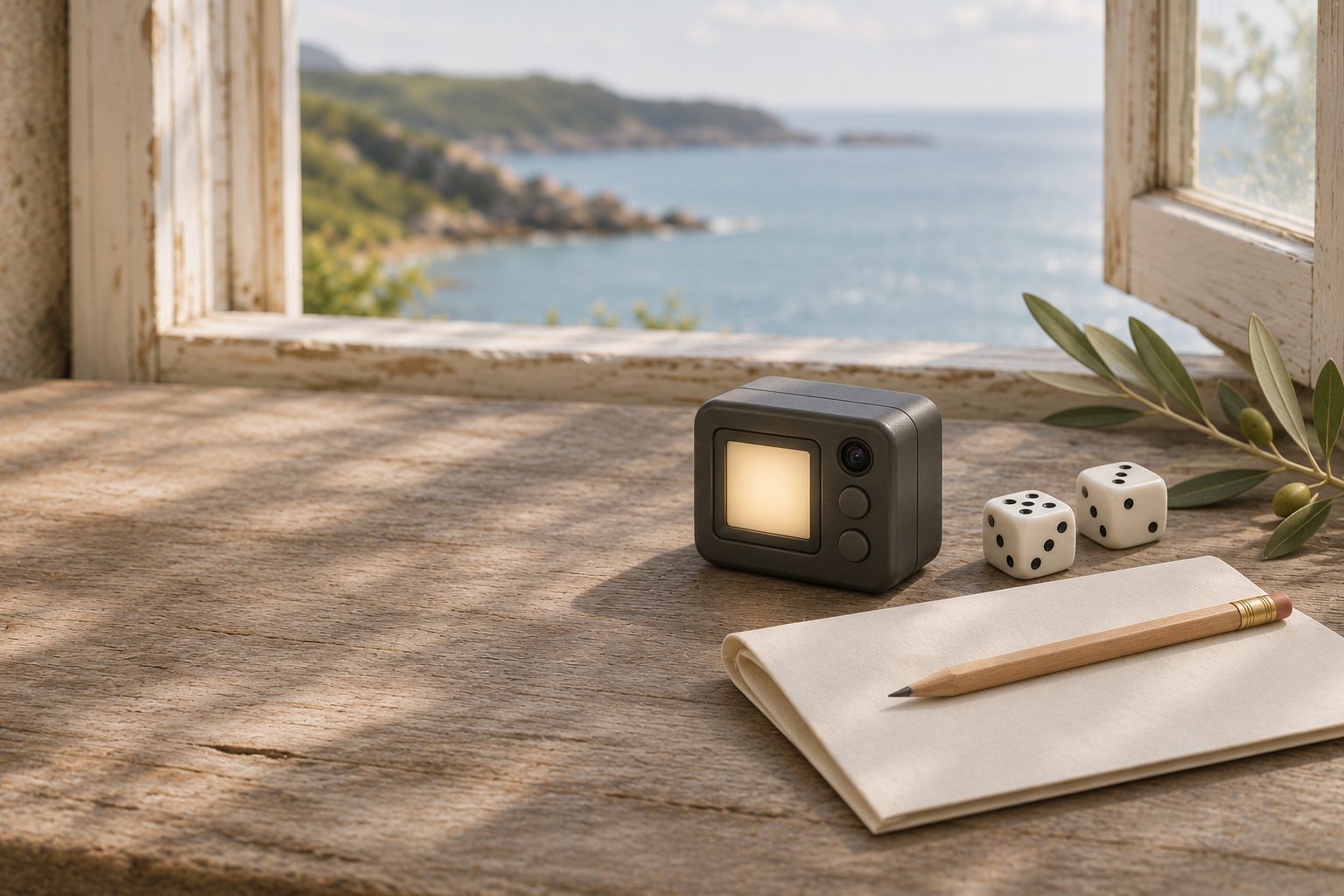
What Krux is
Krux is open-source firmware that turns small, off-the-shelf camera boards into a Bitcoin signing device. The boards are sold as AI cameras and development kits, and all use the same Kendryte K210 chip. Krux works offline. It reads transactions from your wallet app by camera or microSD card, signs them, and shows the signed result as a QR code or saves it to the card.
By default Krux forgets your seed when it powers off, so you load it each time from your backup, the same way SeedSigner works. It can also store your seed encrypted on the device or on a microSD card. There is no secure chip in any of these boards, so a stored seed is only as safe as the key you encrypt it with.
The current release is v26.09.0, published on 3 October 2026. It is the first release from a new maintainer, Jean Do, who took over from Odudex. Krux calls itself a research and development project and asks you to accept a disclaimer that innovative features may have undiscovered flaws. The code is published under the MIT and Apache 2.0 licences.
Krux documentation ↗ · Krux v26.09.0 release ↗
Which device to buy
Krux runs on eight devices. The prices below are the ranges in Krux's own parts list, in US dollars. Most come assembled with a touchscreen. Buy from a seller you trust, because you will be holding your seed on it.
| Device | Screen | Price |
|---|---|---|
| M5StickV | 1.14", buttons | $50 to $55 |
| Maix Amigo | 3.5", touch | No longer sold |
| Maix Cube | 1.3", buttons | $34 to $49 |
| Yahboom K210 module | 2", touch | $45 to $61 |
| WonderMV | 2", touch | $58 to $86 |
| TZT | 2", touch | $48 |
| Embed Fire | 2.4", touch | $74 |
| Maix Dock | 2.4", buttons | $27 to $35, plus parts |
The Maix Dock is a kit. You add a rotary encoder or buttons, solder them and print a case. The M5StickV, Maix Amigo and Maix Cube have a battery. The others run from a USB power bank or charger.
The K210 chip itself has been discontinued. Krux still supports every device above, and the v26.09.0 release notes say that moving to new boards will need help from the community. Bear that in mind if you want the same device to be available in years to come. Your seed backup works in any BIP39 wallet, so you are not locked to the hardware.
Install and verify the firmware
The simplest route is Krux-Installer, a desktop app for Windows, macOS and Linux. Version 0.0.24 carries Krux v26.09.0 inside it and checks the firmware's hash before it flashes.
- Download Krux-Installer from its GitHub releases page, along with the SHA256.txt file and its .asc signature.
- Check the signature with GPG, then check that your download's hash is listed in the file. Verify the software before you trust it shows how.
- Open Krux-Installer and accept the disclaimer. Choose Version, then Device, and pick your model.
- Connect the device by USB and switch it on. On the Maix Amigo, use the bottom USB port.
- Choose Flash firmware and do not unplug until it reports DONE.
The installer itself warns that a compromised computer can still compromise the firmware it flashes. That is why the first install matters most. You can also flash from the command line, or build the firmware yourself. Krux's builds are reproducible, and the v26.09.0 release notes say the maintainer and other contributors checked them.
Updates by microSD card. After the first install, you never need to plug the device into a computer again. Copy firmware.bin and firmware.bin.sig from the official release onto a FAT32 microSD card, put it in the device and restart. Krux checks the signature against its own key and only offers to install a correctly signed release. Delete the files from the card afterwards, or it will offer to install again.
Krux-Installer releases ↗ · Krux: upgrade via microSD card ↗
Create a seed
On the start screen choose New Mnemonic, then pick a source of randomness.
- Via D6 or Via D20. Roll real dice and enter each result. A six-sided die needs at least 50 rolls for 12 words and 99 for 24. A twenty-sided die needs 30 and 60. Krux shows the SHA256 hash of your rolls, so you can check the result on a second tool.
- Via Words. Draw 11 or 23 words from the printed BIP39 list. Krux works out a valid last word for you.
- Via Camera. Krux hashes a photo of something random. Krux marks this as experimental.
Dice are the method you can check yourself. Write the words on paper or stamp them in metal, never on a phone or computer.
Before Krux loads the wallet it shows a summary. The fingerprint at the top is an eight-character code for this seed. Write it beside your words. Every time you load your seed later, the fingerprint should match. A different fingerprint means a typo or a different .
To load an existing seed, choose Load Mnemonic. You can type the words, scan a QR code, including SeedSigner's SeedQR and Compact SeedQR, or open an encrypted copy From Storage. Other Formats covers metal backups such as Tinyseed and Stackbit 1248.
Krux: generating a mnemonic ↗ · Krux: loading a mnemonic ↗
Back up the seed
With the wallet loaded, Backup Mnemonic shows your seed as words, word numbers, a QR code or a metal-plate pattern. A Compact SeedQR drawn by hand on paper lets you load the seed in seconds with the camera. Krux can print QR codes on a small thermal printer if you connect one.
The Encrypted options save the seed to the device's memory, to a microSD card or as an encrypted QR code. Krux's own documentation says this is for convenience only. Flash memory and cards can fail, and a weak encryption key protects nothing. Keep a paper or metal backup whatever else you do.
If you add a passphrase, the fingerprint changes. The passphrase guide explains how to back one up.
Use it with Sparrow
Krux never broadcasts anything. A wallet app on your computer or phone, which Krux calls a coordinator, watches the balance and sends transactions. Krux lists Sparrow, Specter Desktop, Liana and Bitcoin Safe on desktop, and Nunchuk, BlueWallet, Bitcoin Keeper and Bull Bitcoin on mobile. It does not work with Electrum. These steps use Sparrow.
Set up the wallet
- On Krux, load your seed and choose Load Wallet. The default is a single-signature native SegWit wallet.
- From the main menu choose Extended Public Key, then the - QR Code option.
- In Sparrow, choose File > New Wallet and name it. Under Keystores choose Airgapped Hardware Wallet, find Krux and choose Scan.... Hold the Krux screen up to the webcam.
- Check that the fingerprint in Sparrow matches the one on Krux, then choose Apply.
Check a receive address
- In Sparrow, open the Receive tab.
- On Krux, choose Address, then Scan Address, and scan Sparrow's QR code.
- Answer yes to Check that address belongs to this wallet?. Krux searches your addresses and reports is a valid address! when it finds it.
Do this before your first deposit and before any large one. It proves the address comes from your seed, whatever happened on the computer.
Send and sign
- In Sparrow, fill in the Send tab, choose Create Transaction, then Finalize Transaction for Signing, then Show QR.
- On Krux, choose Sign, then PSBT, then Load from camera, and scan the animated QR code.
- Krux lists the Inputs, the Spend going to someone else, any Self-transfer or Change coming back to you, and the Fee. Check the address and amount against what you meant to send. A fee of 10% or more of the amount brings up a High fees! warning.
- Choose Sign to QR code. In Sparrow choose Scan QR, hold Krux up to the webcam, then Broadcast Transaction.
If the camera struggles with a long transaction, save it to a microSD card in Sparrow and use Load from SD card and Sign to SD card instead.
Krux: setting a coordinator and signing ↗ · Sparrow source: Krux import ↗
Multisig and Liana
Krux can be one key in a wallet, and it understands Miniscript, including Taproot Miniscript. Krux lists Liana as a coordinator, so it can sign for a Liana wallet with a timelocked recovery path.
For anything beyond a single key, load the wallet descriptor onto Krux. Export it from your coordinator as a QR code or file, then on Krux choose Wallet, then Wallet Descriptor, and scan or load it. Krux needs it to check addresses and transactions for these wallets. Without it, Krux warns Wallet output descriptor not found. and Some checks cannot be performed. before signing. The descriptor is also part of your backup. The multisig recovery kit covers what to keep.
Tamper check
A device with no secure chip can have its firmware swapped by someone who gets hold of it. Krux has an experimental tamper check to help you notice.
- Go to Settings, then Security, then Tamper Check Code, and set a code of at least six characters.
- Krux offers to fill its empty memory with data from the camera. Point it at something harmless such as fabric, because the frames are stored as captured and could be recovered from the chip.
- Run Tools, then Flash Tools, then TC Flash Hash. It shows an image and two pairs of words. Write them down.
Run it again whenever you want to check the device. If the firmware has changed, the image and the first two words change. TC Flash Hash at Boot runs the check every time the device starts. Remove the microSD card before you run it, as Krux's documentation advises.
Risks and limits
- General-purpose hardware. These are camera boards, not wallets. There is no secure chip, so leaving the seed off the device is the safer default.
- A small, volunteer project. There is no help desk. Questions go to the project's Telegram groups and GitHub. v26.09.0 was the first release from a new maintainer.
- Bugs do happen. v26.09.0 fixed a 12-byte buffer overflow in its encryption code, reported privately. The maintainer judged it not practically exploitable and said existing encrypted backups need no action. Keep the firmware up to date.
- A discontinued chip. Devices may become harder to find. Your words remain usable in any BIP39 wallet.
- The Android app is for learning. Krux also makes a test app for Android phones. Its own documentation says not to use it for savings.
- Privacy comes from the coordinator. Krux stays offline, but your wallet app goes online, and its server choice decides who sees your addresses.
To build a signer from a Raspberry Pi instead, compare SeedSigner. It has the same stateless design and reads the same SeedQR backups.
Before you rely on it
- Krux-Installer was verified with its signature and hash before you used it.
- Your seed came from dice or drawn words, and the words are on paper or metal with the fingerprint beside them.
- Any encrypted copy on the device or card is an extra, not your only backup.
- Sparrow's fingerprint matches Krux's, and you checked a receive address on the device.
- You set a tamper check code and wrote down the image and words.
- For multisig or Liana, the wallet descriptor is loaded on Krux and saved with your backup.
- You restored from your backup once and signed a small payment end to end. A recovery rehearsal shows how.
Sources & further reading
Researched 17 November 2026. Software and services change: check the current documents before you act.
- Krux documentation ↗
- Krux: source code ↗
- Krux v26.09.0 release and attestation ↗
- Krux: parts list ↗
- Krux: FAQ ↗
- Krux: generating a mnemonic ↗
- Krux: loading a mnemonic ↗
- Krux: navigating the main menu ↗
- Krux: setting a coordinator and signing ↗
- Krux: upgrade via microSD card ↗
- Krux: tamper detection ↗
- Krux: encryption ↗
- Krux source: transaction review ↗
- Krux source: main menu ↗
- Krux-Installer releases ↗
- Sparrow source: Krux import ↗
SeedSigner: a signing device you build yourself → · Sparrow: build a wallet you can inspect → · Liana: a wallet with a built-in recovery plan → · Verify the software before you trust it → · Passphrases: the extra word that can save or lose your bitcoin → · The complete multisig recovery kit →